Today I worked on configuring forms based authentication for SharePoint 2010. Using forms based authentication automatically means using claims based authentication in Sharepoint 2010.
I tried using both an LDAP provider and a SQL provider. My initial goal was to get them both working in the same environment, but after a lot of hours of staring at XML in web.config files I gave up on that one. Instead I created separate environments for using LDAP and SQL providers. Because of this I will also write two separate blog posts. This one will explain how to set up forms based authentication while using a SQL provider.
If you want to configure forms based authentication for use with an LDAP provider check out my other post here.
Using a SQL provider with forms based authentication means that users will use usernames and passwords that are stored in SQL Server Database. They will use a sign-in page to fill in their credentials and log in.
You can of course create your own database for storing credentials, but if you want one to be set up for you very quickly you can create the ASPNETDB by performing these steps:
- Go to the SQL Server database server
- On the database server, open Windows Explorer.
- Navigate to the path %System Drive%\Windows\Microsoft.NET\Framework\v2.0.50727.
- To start the ASP.NET SQL Server Setup Wizard, double-click aspnet_regsql.exe.
- Complete the wizard
- Make sure the Application Pool accounts of the web application(s) and the Central Administration web site have access to the database
In order to load up your database with test data you can use the membership seeder tool from CodePlex
- Download the MembershipSeeder tool from http://www.codeplex.com/CKS/Release/ProjectReleases.aspx?ReleaseId=7450
- To run the MembershipSeeder tool
* Start the MembershipSeeder tool.
* Click Configure.
* In the dialog box that opens, type the name of the computer running SQL Server that hosts your SQL membership database.
* Save your changes, and then restart MembershipSeeder so that it will use the new server name.
- To create users for testing purposes
* In the User Prefix field, type a value.
* In the Password field, type the password you want each user to have.
* In the # of Users field, select the number of users to create.
* Click Create to create users where the user name is the value of the User Prefix field with an incrementing number added to the end
These are the steps you will need to take to set up the forms based authentication:
Create a new web application
- Go to Central Administration
- Go to Application Management
- Click on Manage Web Applications
- Click New
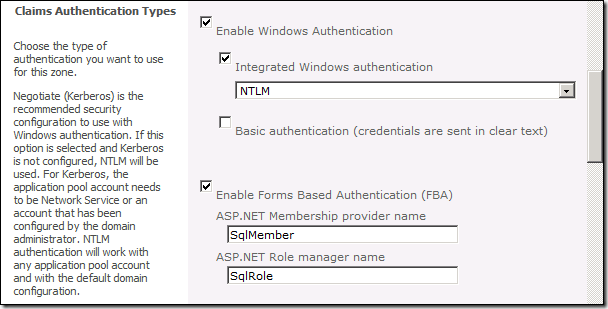
- Select Claims Based Authentication
- Identity Providers
* Check the Enable Windows Authentication box or you won’t be able to crawl the site
* Check the Enable ASP.NET Membership and Role Provider checkbox
* In the Membership provider name edit box, type SqlMember
* In the Role provider name edit box, type SqlRole
Create a new site collection
- Go to Central Administration
- Go to Application Management
- Click Create site collections
- Select the newly created web application
- Fill in a name and select a template
Adjust the web.config of the Central Administration site
- Open the Central Administration site's web.config file
- Find the </configSections> entry
- Paste the following XML directly below it
<connectionStrings>
   <clear />
   <add name="AspNetSqlMembershipProvider"
 connectionString="data source=sql.sharepoint.com;Integrated Security=SSPI;Initial Catalog=aspnetdb"
 providerName="System.Data.SqlClient" />
</connectionStrings>
- Find the <system.web> entry
- Paste the following XML directly below it
<roleManager enabled="true"
   cacheRolesInCookie="false"
   cookieName=".ASPXROLES"
   cookieTimeout="30"
   cookiePath="/"
   cookieRequireSSL="false"
   cookieSlidingExpiration="true"
   cookieProtection="All"
   defaultProvider="AspNetWindowsTokenRoleProvider"
   createPersistentCookie="false"
   maxCachedResults="25">
   <providers>
      <clear />
      <add connectionStringName="AspNetSqlMembershipProvider"
         applicationName="/"
         name="SqlRole"
         type="System.Web.Security.SqlRoleProvider, System.Web, Version=2.0.0.0,
 Culture=neutral, PublicKeyToken=b03f5f7f11d50a3a" />
      <add applicationName="/"
         name="AspNetWindowsTokenRoleProvider"
         type="System.Web.Security.WindowsTokenRoleProvider, System.Web, Version=2.0.0.0,
 Culture=neutral, PublicKeyToken=b03f5f7f11d50a3a" />
   </providers>
</roleManager>

<membership defaultProvider="SqlMember"
   userIsOnlineTimeWindow="15" hashAlgorithmType="">
   <providers>
      <clear />
      <add connectionStringName="AspNetSqlMembershipProvider"
         enablePasswordRetrieval="false"
         enablePasswordReset="true"
         requiresQuestionAndAnswer="true"
         passwordAttemptWindow="10"
         applicationName="/"
         requiresUniqueEmail="false"
         passwordFormat="Hashed"
         name="SqlMember"
         type="System.Web.Security.SqlMembershipProvider, System.Web, Version=2.0.0.0,
 Culture=neutral, PublicKeyToken=b03f5f7f11d50a3a" />
   </providers>
</membership>
- Double check whether the <membership> and <rolemanager> entries only exist ones. Delete any double entries.
- Paste the following XML below the <PeoplePickerWildcards> entry
<clear />
<add key="AspNetSqlMembershipProvider" value="%" />
<add key="SqlMember" value="%"/>
<add key="SqlRole" value="%"/>
Adjust the web.config of the Security Token Service (STS) virtual directory
NB: you will need to make the changes to the Security Token Service virtual directory on each server hosting either Central Administration or the claims based web application
- Open the Security Token Service (STS) virtual directory's web.config file
- Find the </system.net> entry
- Paste the following XML directly below it
<connectionStrings>
   <clear />
   <add name="AspNetSqlMembershipProvider"
 connectionString="data source=sql.sharepoint.com;Integrated Security=SSPI;Initial Catalog=aspnetdb"
 providerName="System.Data.SqlClient" />
</connectionStrings>
- Add a <system.web> entry directly below the </connectionStrings>
- Paste the following XML directly below the <system.web> entry
<membership>
   <providers>
     <add connectionStringName="AspNetSqlMembershipProvider"
        enablePasswordRetrieval="false"
        enablePasswordReset="true"
        requiresQuestionAndAnswer="true"
        passwordAttemptWindow="10"
        applicationName="/"
        requiresUniqueEmail="false"
        passwordFormat="Hashed"
        name="SqlMember"
        type="System.Web.Security.SqlMembershipProvider, System.Web, Version=2.0.0.0,
Culture=neutral, PublicKeyToken=b03f5f7f11d50a3a" />
   </providers>
</membership>

<roleManager enabled="true">
   <providers>
      <add connectionStringName="AspNetSqlMembershipProvider"
         applicationName="/"
         name="SqlRole"
         type="System.Web.Security.SqlRoleProvider, System.Web, Version=2.0.0.0,
Culture=neutral, PublicKeyToken=b03f5f7f11d50a3a" />
   </providers>
</roleManager>
- Add a </system.web> entry directly below it
Adjust the web.config of the claims based web application
- Open the claims based web application's web.config file
- Find the </configSections> entry
- Paste the following XML directly below it
<connectionStrings>
   <clear />
   <add name="AspNetSqlMembershipProvider"
 connectionString="data source=sql.sharepoint.com;Integrated Security=SSPI;Initial Catalog=aspnetdb"
 providerName="System.Data.SqlClient" />
</connectionStrings>
- Locate the <membership> entry
- Replace everything from <membership> to </membership> with the following XML
<membership defaultProvider="i"
   userIsOnlineTimeWindow="15"
   hashAlgorithmType="">
   <providers>
      <clear />
      <add connectionStringName="AspNetSqlMemberShipProvider"
         enablePasswordRetrieval="false"
         enablePasswordReset="true"
         requiresQuestionAndAnswer="true"
         passwordAttemptWindow="10"
         applicationName="/"
         requiresUniqueEmail="false"
         passwordFormat="Hashed"
         name="SqlMember"
         type="System.Web.Security.SqlMembershipProvider, System.Web, Version=2.0.0.0,
Culture=neutral, PublicKeyToken=b03f5f7f11d50a3a" />
     <add name="i"
        type="Microsoft.SharePoint.Administration.Claims.SPClaimsAuthMembershipProvider,
Microsoft.SharePoint, Version=14.0.0.0, Culture=neutral, PublicKeyToken=71e9bce111e9429c" />
   </providers>
</membership>
- Locate the <roleManager> entry
- Replace everything from <roleManager> to </roleManager> with the following XML:
<roleManager enabled="true"
   cacheRolesInCookie="false"
   cookieName=".ASPXROLES"
   cookieTimeout="30"
   cookiePath="/"
   cookieRequireSSL="false"
   cookieSlidingExpiration="true"
   cookieProtection="All"
   defaultProvider="c"
   createPersistentCookie="false"
   maxCachedResults="25">
      <providers>
         <clear />
         <add connectionStringName="AspNetSqlMemberShipProvider"
            applicationName="/"
            name="AspNetSqlRoleProvider"
            type="System.Web.Security.SqlRoleProvider, System.Web, Version=2.0.0.0,
Culture=neutral, PublicKeyToken=b03f5f7f11d50a3a" />
         <add applicationName="/"
            name="SqlRole"
            type="System.Web.Security.WindowsTokenRoleProvider, System.Web, Version=2.0.0.0,
Culture=neutral, PublicKeyToken=b03f5f7f11d50a3a" />
         <add name="c" type="Microsoft.SharePoint.Administration.Claims.SPClaimsAuthRoleProvider,
Microsoft.SharePoint, Version=14.0.0.0, Culture=neutral, PublicKeyToken=71e9bce111e9429c" />
   </providers>
</roleManager>
- Paste the following XML below the PeoplePickerWildcards entry
<clear />
<add key="AspNetSqlMembershipProvider" value="%" />
<add key="SqlMember" value="%"/>
<add key="SqlRole" value="%"/>
Add a user policy to the web application
- Go to Central Administration
- Go to Application Management
- Click on Manage Web Applications
- Select the claims based web application
- Click on User Policy
- Click on the Add Users link
- Click the Next button.
- Click the Address Book icon.
- Type in the NT login name or account name and click the search button. If it’s working correctly you should see at least two entries for the account – one that is for the user’s Active Directory account, and one that is for that same account but which was found using the LDAP provider.
- Select the account in the User section and click the Add button
- Click the OK button
- Check the Full Control checkbox, then click the Finish button
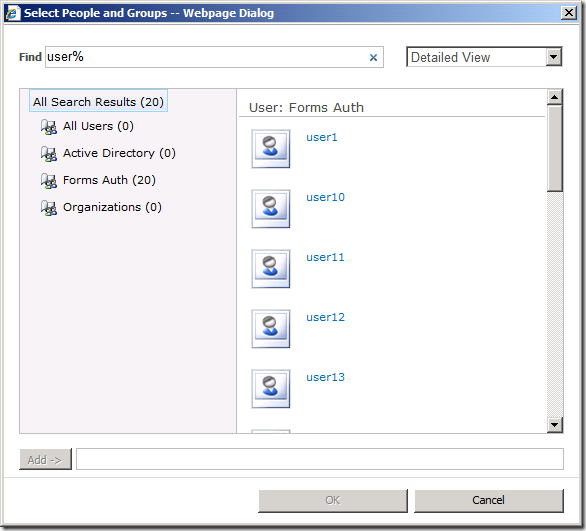
You can now browse to the web application and log in using forms based authentication.
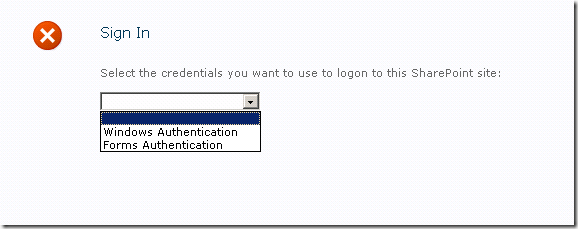
Select Forms Authentication
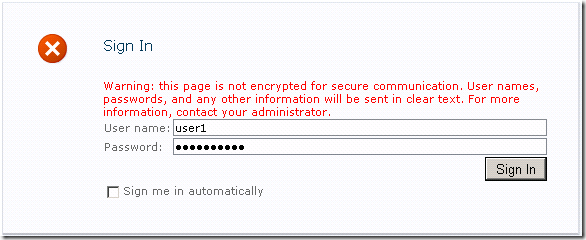
And fill in the username and password
I used the following blog posts to get things working, so I would like to thank Ali for his post:
http://blogs.msdn.com/alimaz/archive/2009/10/30/configuring-fba-in-sharepoint-server-2010-beta-2.aspx
I also want to thank Spence for his help and advice.